How to delete Microsensor
Deleting devices from your LEXI app is very easy
- Open your LEXI app, and navigate to Devices -> Sensors.
- Click on the right arrow “>” icon located on the upper right corner on the device card of your Microsensor which you want to delete.
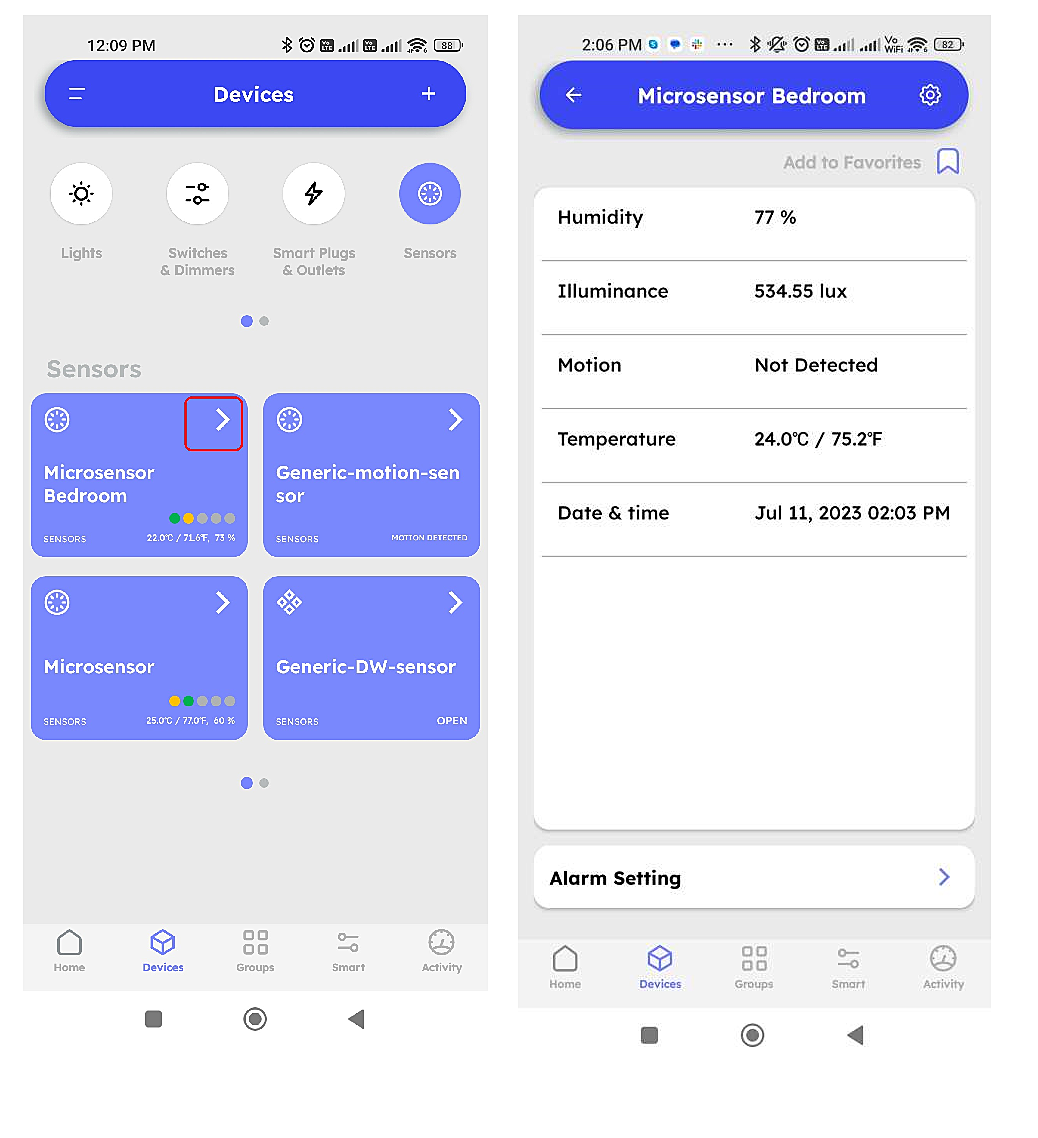
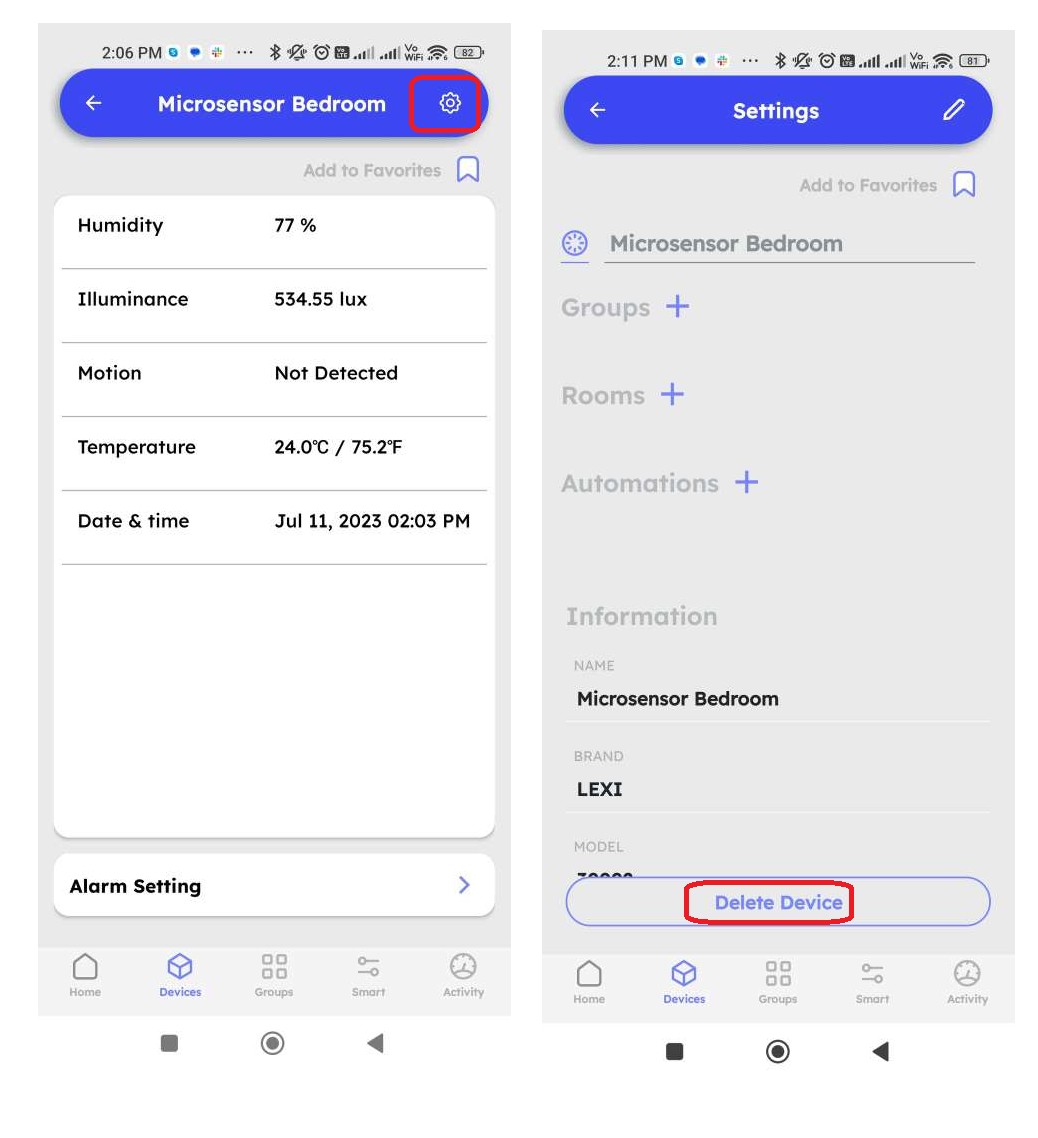
- Click on the settings (gear) icon located on the upper right corner on the device card of your Microsensor which you want to delete.
- Scroll to the bottom of the screen and select “Delete Device”.
Related Articles
How to reset Microsensor
You can easily reset your Microsensor to bring it to factory default settings. To reset your Microsensor, please follow the steps give below: Press and release the reset button (by inserting a small pin into the pinhole on the side of the device) and ...
How to delete a Location
Deleting a Location from your LEXI app is easy Open your LEXI app, and click on the dropdown on the top right-hand-side corner of your phone screen. Click on the right arrow “>” icon located next to the Location name. Click on the right arrow “>” ...
How to delete Smart Plug
Deleting devices from your LEXI app is very easy Open your LEXI app, and navigate to Devices -> Smart Plugs and Outlets. Click on the right arrow “>” icon located on the upper right corner on the device card of your Smart Plug which you want to ...
How to delete Smart Switch
Deleting devices from your LEXI app is very easy Open your LEXI app, and navigate to Devices -> Switches & Dimmers. Click on the right arrow “>” icon located on the upper right corner on the device card of your Smart Switch which you want to delete. ...
How to delete Smart Camera
Deleting devices from your LEXI app is very easy Open your LEXI app, and navigate to Devices -> Cameras. Click on the right arrow “>” icon located on the upper right corner on the device card of your Camera which you want to delete. Click on the ...